



Just don’t forget
your wallet
Pay quickly and conveniently with Urbo
on your "Android" device

Google Pay
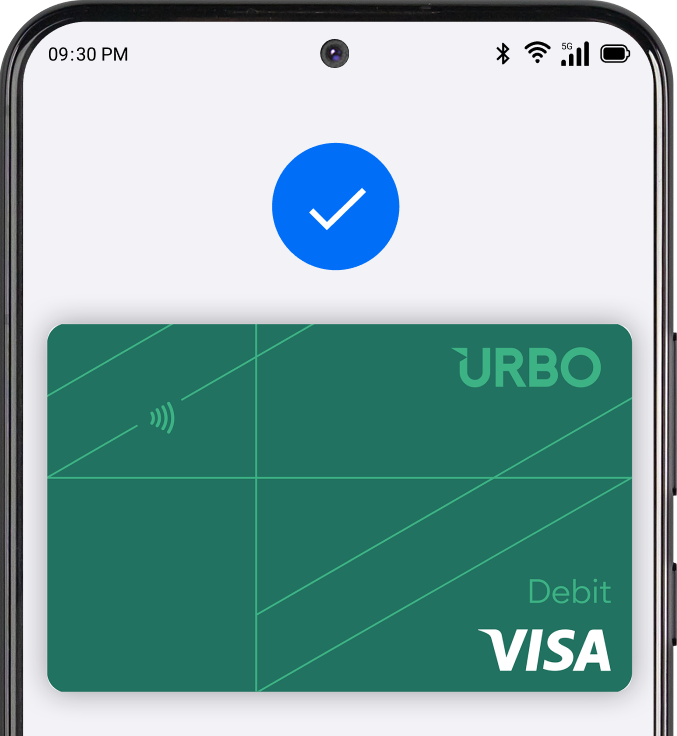
"Google Pay"– a modern, fast, and convenient way to pay using your "Android" device. With just one tap, you can pay quickly and securely in stores, online, or in apps. To get started, simply add your Urbo VISA card to your Digital Wallet.
Fast and convenient – make payments in just a few seconds
Security – your card number is not shared with merchants, and your payments are protected by multiple security layers
Works anywhere contactless payments are accepted – just look for the contactless symbol
No additional fees
-side_image.jpg)
How to get started?
- In the Urbo app, open the Cards section and tap the Add to Google Wallet button. This will start the card-adding process to Google Wallet.
- When adding the card through the Urbo app, simply follow the instructions on your phone. Google Wallet will ask you to confirm the card and, if needed, complete an additional security step.
- Once the card is added, just unlock your Android device, hold it near a contactless payment terminal, and make your payment.
Security tips
Use a strong password for your device and never share it with others
Enable biometric authentication (e.g., Face ID, Touch ID)
Keep your device’s operating system up to date
If your device is lost, block access to your digital wallet and/or your Urbo VISA card via internet banking